Question: How do I take photos and use zoom on my Laser Digital Camcorder?
Answer:
Model reference: CA-CC26BK-513
Applies to: CA-CC26BK-513
If your SKU differs, search our support page by your Model SKU to find the correct article.
To take a photo with the Laser Digital 1080p Camcorder with 16x Zoom - Black:
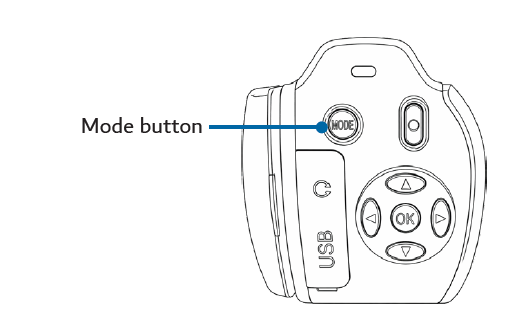
1. Press the Mode button until Photo Mode is selected.
2. Frame your subject using the screen.
3. Slide the Zoom In or Zoom Out control if required.
4. Press the Photo button to capture the image.
The photo is saved to the installed microSD card. The camcorder supports single-shot and burst photo modes, 16x digital zoom and selectable JPG photo sizes up to 48MP.
Was this article helpful?
That’s Great!
Thank you for your feedback
Sorry! We couldn't be helpful
Thank you for your feedback
Feedback sent
We appreciate your effort and will try to fix the article