Question: How can I change projected image orientation?
Answer:
Model reference: PJ-TUFHA3-065 (Black)
Applies to: PJ-TUFHA3-065
If your SKU differs, search our support page by your Model SKU to find the correct article.
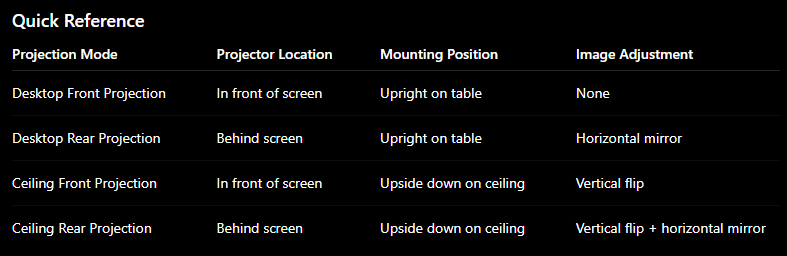
If your projected image appears upside down, mirrored, or reversed, the projector is likely set to a different projection mode. To correct this:
Open the Settings menu on your projector.
Locate the Projection/Display Orientation option.
Select the display mode that matches how your projector is positioned (e.g., front table, rear table, ceiling mount).
Exit the menu and check the image.
Troubleshooting Notes:
If the image is still incorrect, ensure the projector is installed in the correct orientation. The side with the manual focus adjustment should face upward during normal use.
A factory reset will not restore the original projection mode. If the mode was changed previously, the image may remain inverted even after reset.
This behavior cannot be corrected via software update.
If unsure, try each available display mode until the image appears correctly and text reads normally.
Was this article helpful?
That’s Great!
Thank you for your feedback
Sorry! We couldn't be helpful
Thank you for your feedback
Feedback sent
We appreciate your effort and will try to fix the article